Let’s print
Hello UNLang!in Unity console window.
① Create “Hello UNLang!” Script
- Back to Unity editor, you will see
UNLang/IDE...menu.
- Open the
IDEwindow. - Right click in the
IDEwindow and you will see all operations in the context menu.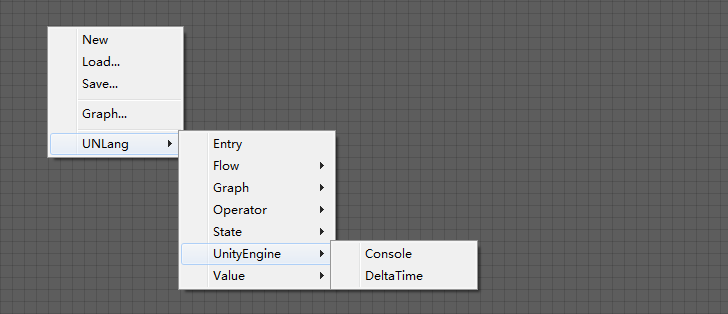
- Add
Entry,ConstantandConsolemodules, then connect them as following: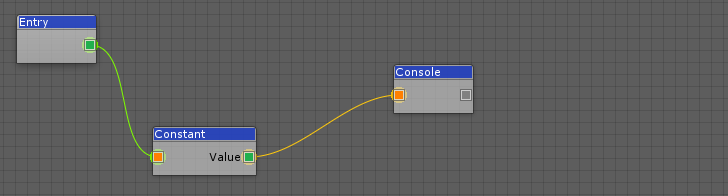
- Select
Constantmodule and in the Inspector window, chooseStringtype and inputHello UNLang!.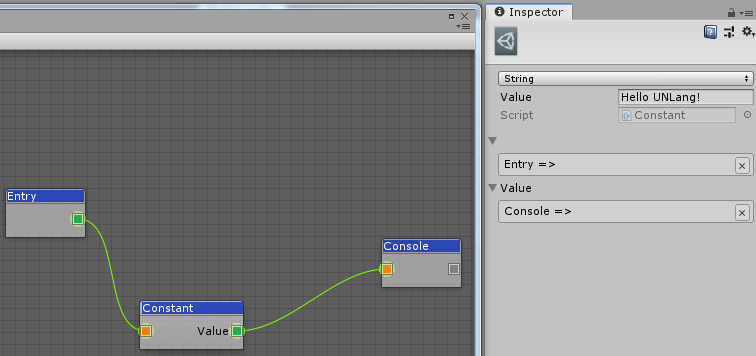
- Right click to save the script to local project, for example,
[UnityProject]/Assets/Resources/1.bytes.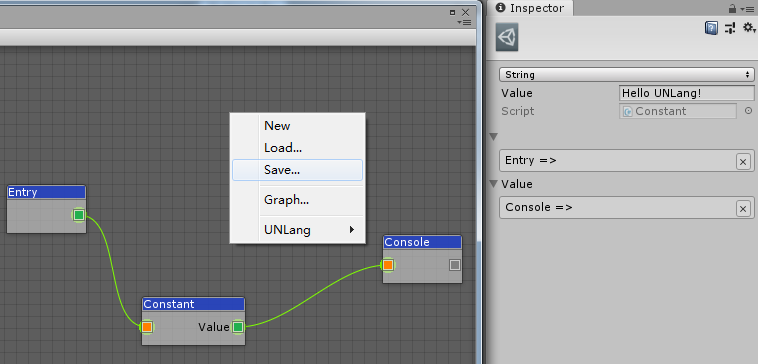
② Run the Script
- Create a GameObject in the active scene.
- Attach an empty MonoBehaviour cs file.
Edit the empty MonoBehaviour cs file with the following code:
using UnityEngine;
using UNLang;
using UNode;

public class NewBehaviourScript : MonoBehaviour
{
    // UNLang instance to execute the script.
    private LangInstance instance = null;

    void Start()
    {
        // Take over the loader since we put the script file
        // under Resources folder.
        NodeLoader.Load = file =>
        {
            // Remove "Resources" relative path and file extension.
            file = file.Replace("/Resources/", "");
            file = file.Substring(0, file.IndexOf("."));
            return Resources.Load<TextAsset>(file).bytes;
        };

        // Create UNLang instance.
        this.instance = new LangInstance();
        // Load script file "1.bytes".
        this.instance.Load("1.bytes");
        // Start the script from "Entry" module.
        this.instance.Run<Entry>();
    }

    void Update()
    {
        // Update UNLang instance.
        this.instance?.Update();
    }
}
Congrats with
Hello UNLang!in Unity console window.